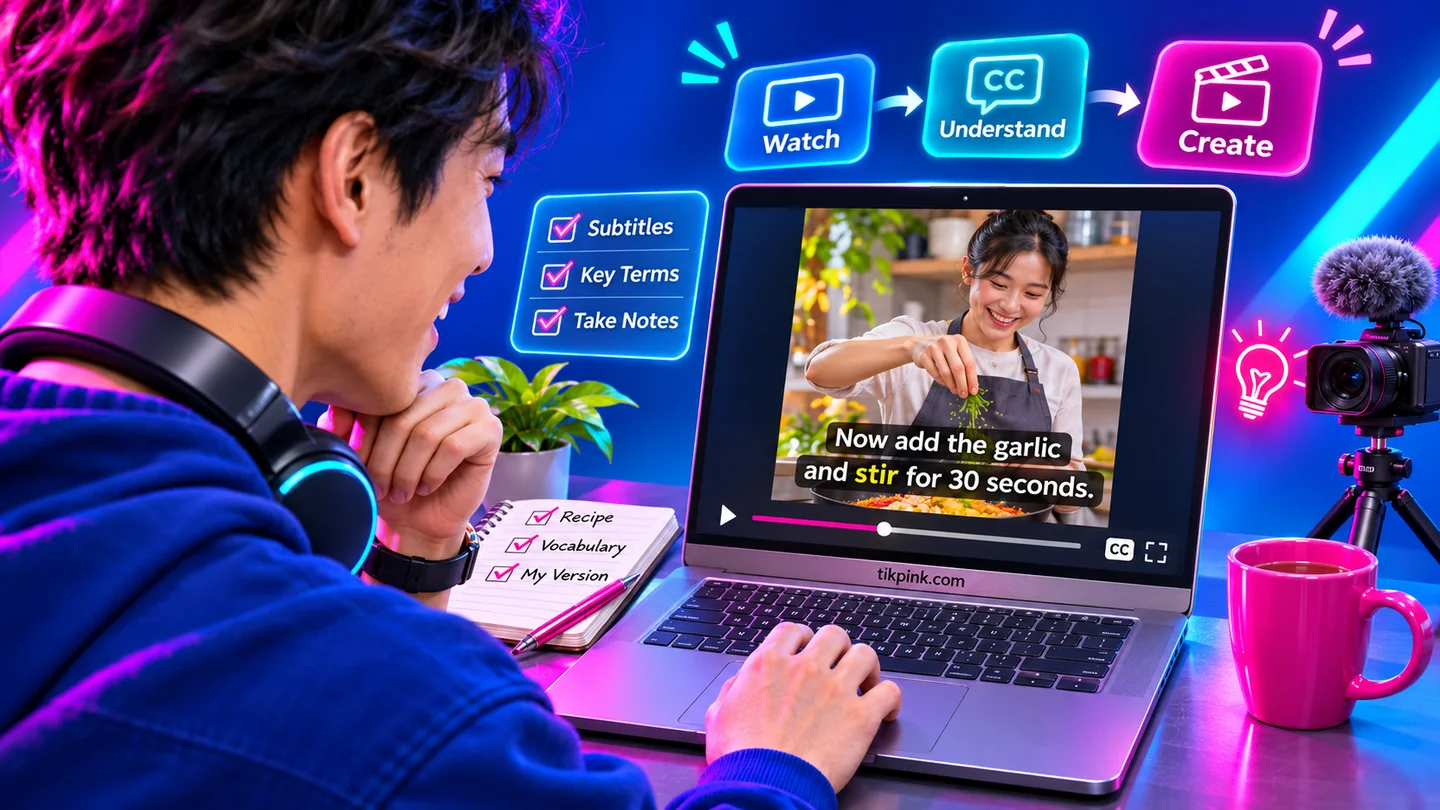
A recipe looks easy to follow until the creator explains the one step you cannot quite catch. English subtitles can fill that gap: transcribe the speech, translate the transcript, then check the result against the video before exporting.
The last check matters more than the first draft. A sentence can read beautifully and still get a name, an ingredient, or a joke wrong. Here is how to build an English subtitle track you can read comfortably, correct when needed, and export in the format your next step requires.
Decide whether you need to watch or export
If you only want to understand a video while watching it, first check the caption and translation options available in TikTok. TikTok has introduced both automatic captions and caption translation, although its original announcement described a gradual rollout. See TikTok's explanation of those tools; the controls available on a particular video may differ.
If you need to correct wording, send captions to an editor, or make a video with visible English subtitles, you need a separate workflow. A translated post description is not a transcript of the spoken video. Neither is a translation of a text sticker necessarily a translation of everything the speaker says.
Prepare the right video
Use your own video or content you have permission to process and reuse. Copy the link to the specific clip, then preview it before starting. Check that it contains the complete sentence you want, that the speaker is audible, and that this is the final edit.
Music over speech, several people talking at once, and abrupt cuts can all make review harder. Keep a short reference list beside you: people's names, product names, unusual terminology, and any numbers that matter. If a creator says a brand name once and then refers to it as “this,” the surrounding picture may be necessary to understand the sentence.
Create an English track in TikPink
- Open Subtitle Studio, paste the TikTok link, and preview the video. Sign in if prompted.
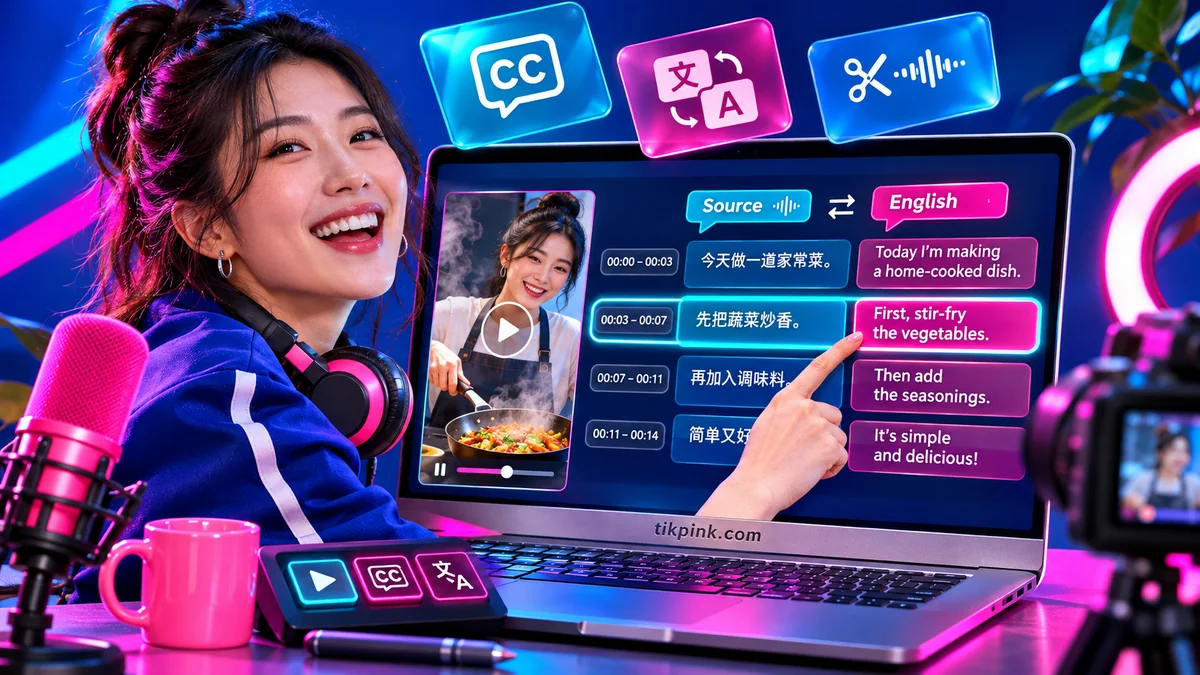
- Choose the translated-subtitles option and select English as the target language. Check the selected tools and the displayed PinkJeton quote before confirming processing.
- When the job completes, open the result and select the translated track. Keep the original-language track available for comparison.
- Play the video while reading the English lines. Edit incorrect text and save your changes.
- Choose a translated SRT, VTT, or TXT download. If you need captions in the picture itself, review the translated track and styling before confirming MP4 rendering.
The quote depends on the selected operation; do not assume that creating a transcript also includes every later export or render. The service explains its processing charge before confirmation. Generated files are temporary, so download the versions you need instead of treating the results page as permanent storage.
Review meaning before polishing the English
Make one pass for accuracy and another for readability. On the first pass, check who is doing what, whether a statement is positive or negative, and whether instructions preserve their order. Pay particular attention to amounts and units. An elegant translation of the wrong quantity is still wrong.
Hypothetical example: a recipe speaker says to add half a teaspoon after taking the pan off the heat. A subtitle that says “add a teaspoon while heating” changes both the amount and the instruction. Checking only spelling would miss both errors.
On the second pass, replace unnatural word-for-word phrasing with concise English that keeps the same meaning. Preserve names rather than inventing English equivalents. For an unfamiliar expression, use the surrounding conversation to understand it; if uncertainty remains, ask someone who understands the source language. Editing an original-language line does not mean every already-generated translation has automatically changed, so check both tracks after corrections.
Keep each subtitle readable at normal speed
Read the English track while the video runs at normal speed on a small screen. If you have to pause, the text may be too dense for the available time. Shorten unnecessary phrasing without dropping an important detail, and break a sentence at a natural phrase boundary rather than between a person's first and last name.
A translation can be longer than the source even when its timing is unchanged. Check that a line does not reveal the end of a joke before the speaker reaches it, or remain on screen over an unrelated shot. Subtitle Studio supports text corrections and adding missing timed lines; moving existing cue boundaries requires a separate retiming workflow.
For captions intended to serve people who cannot hear the audio, include meaningful non-speech information where needed. W3C's caption guidance explains why dialogue alone is not always sufficient.
Choose the export for the next destination
- SRT: a separate timed text file for a compatible editor or publishing tool. Confirm that the destination accepts it.
- VTT: another timed text format, often useful for web video workflows.
- TXT: useful for reading, reference, or further writing; it is not a substitute for a timed caption track.
- Captioned MP4: the translated text is rendered into the video image. The viewer cannot switch that text off.
Keep the clean original and a corrected timed file even if your immediate deliverable is an MP4. Open the downloaded result, check its language, and watch the beginning, middle, and end. If you upload elsewhere, check the uploaded version too: the destination may place buttons or its own captions over your text.
Review the English before you export
Preview your TikTok clip, create an English subtitle track, and correct the wording before choosing your download.
Open Subtitle StudioSources and further reading
- TikTok: accessibility and translation tools: background on in-app captions and translation.
- W3C WAI: Captions/Subtitles: caption purpose, audio information, and review.